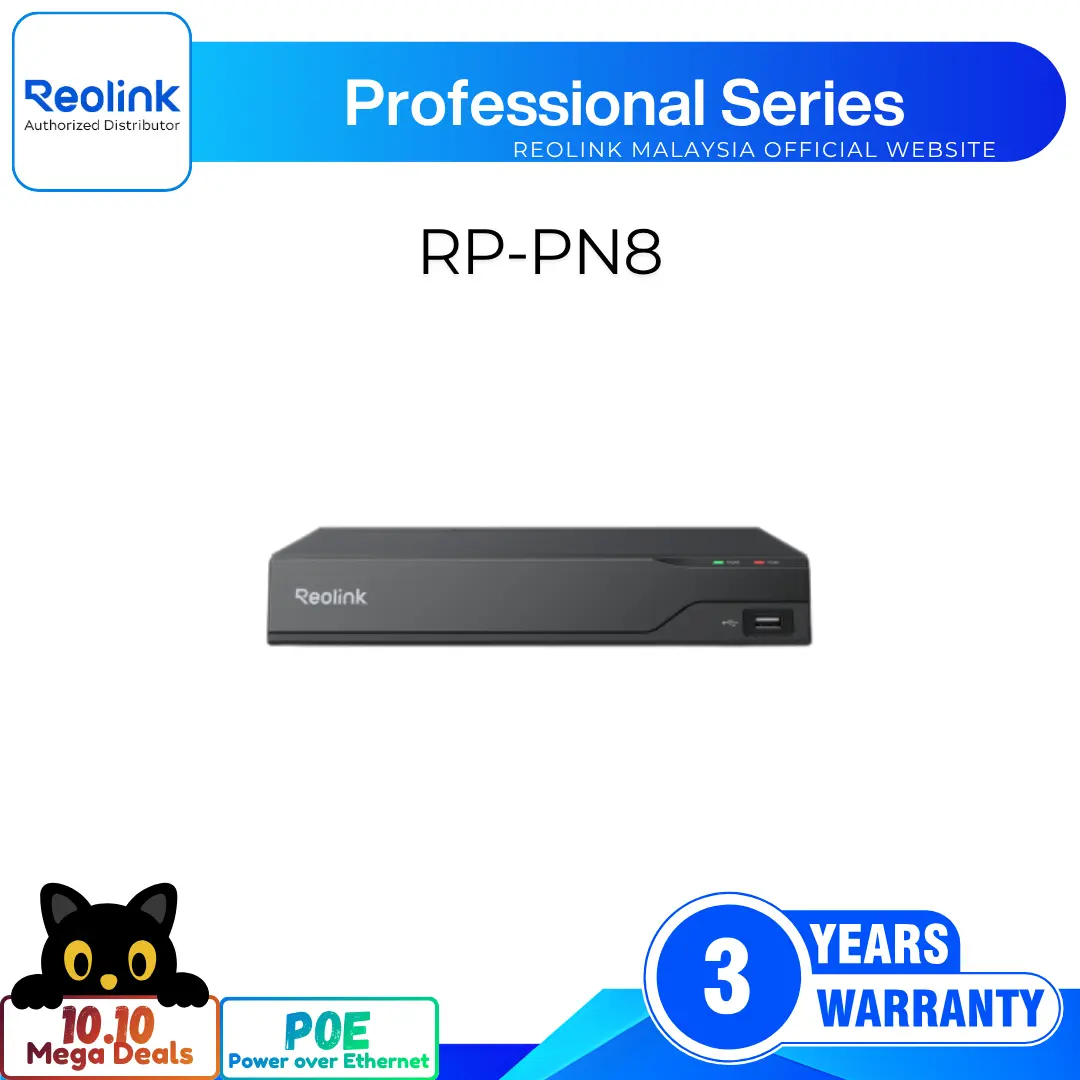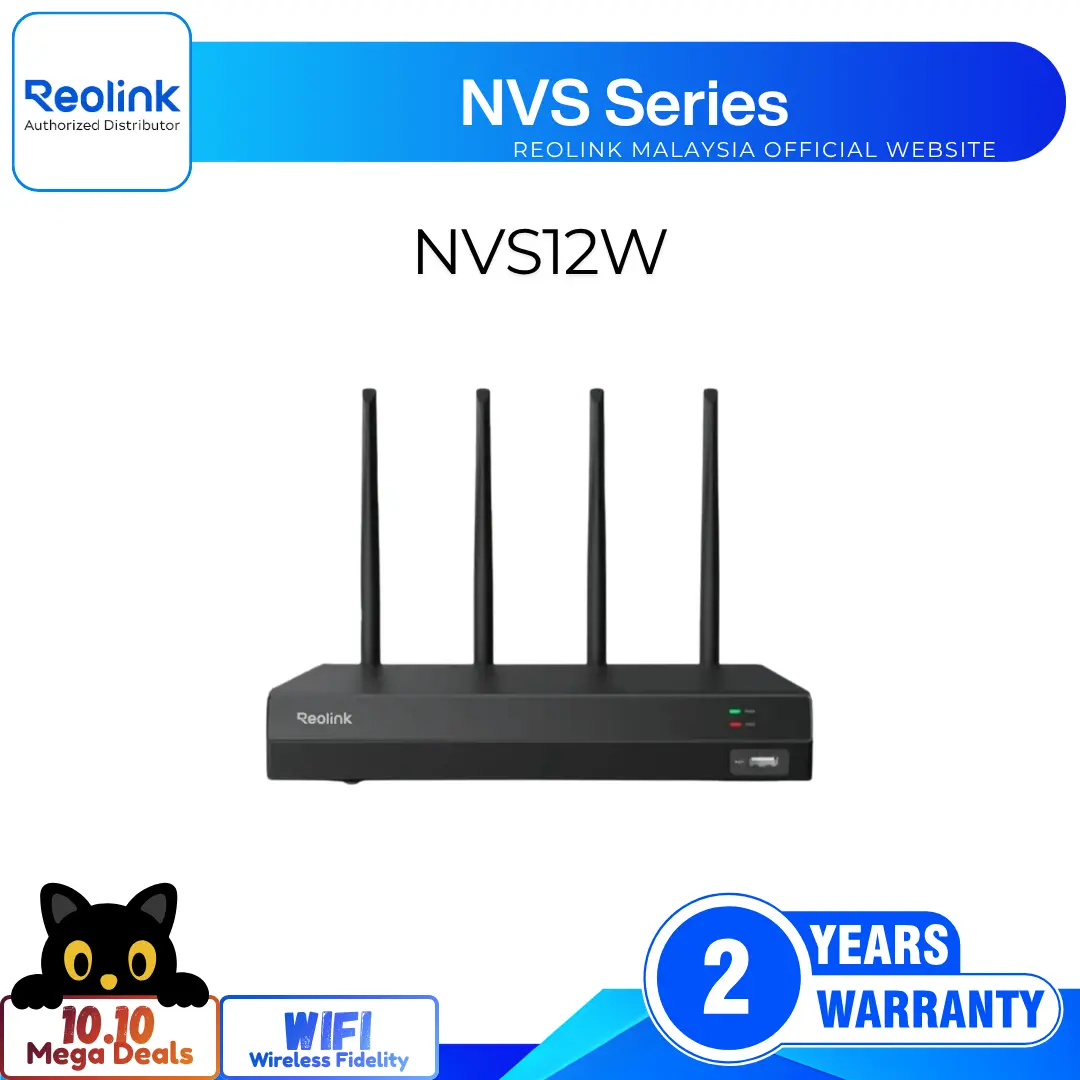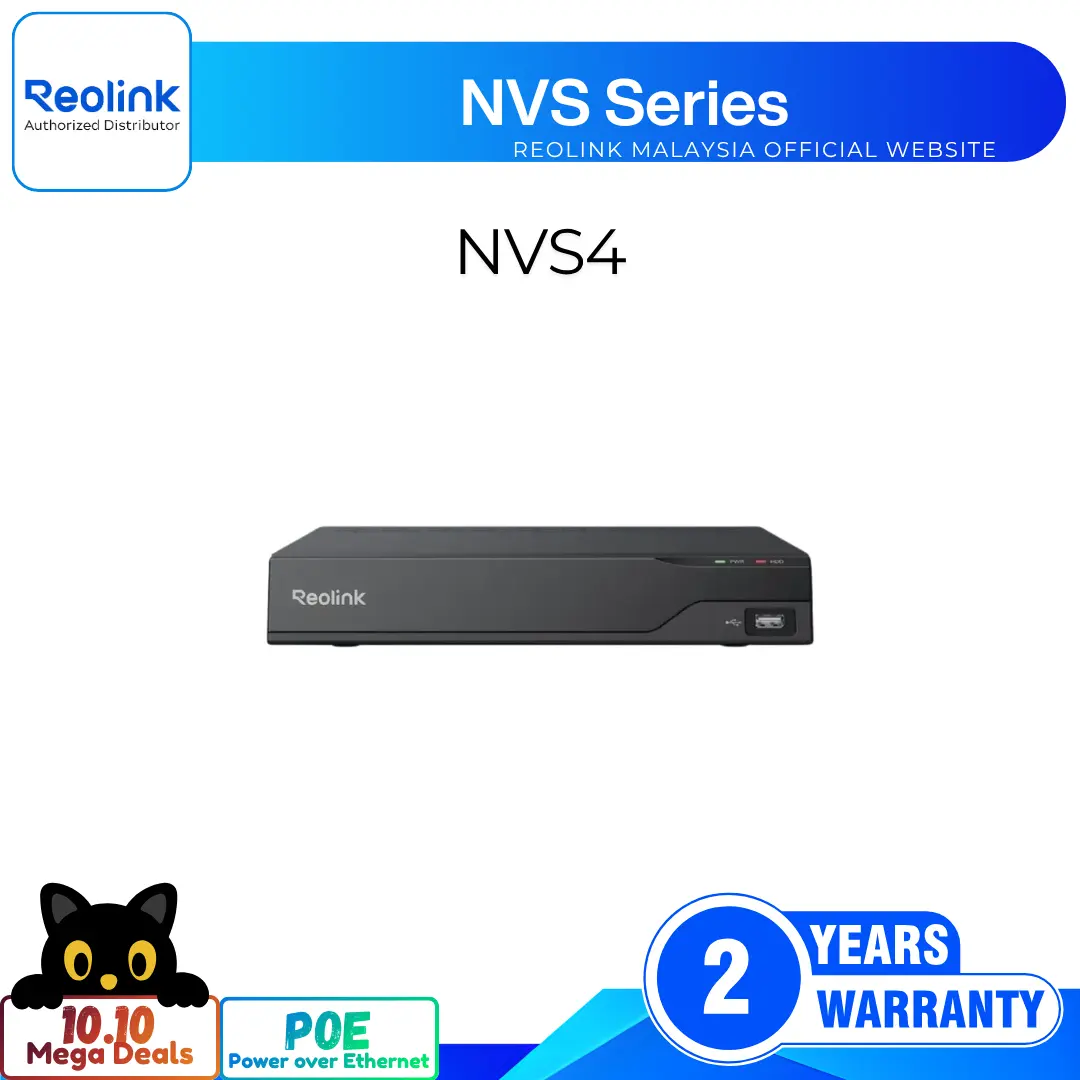
16MP Ultra HD 12-Channel PoE Security Video Recorder
8 Channel PoE for Easy Plug-and-Play Setup
Supports Up to 16MP Ultra-High Resolution
24/7 Continuous Recording for Uninterrupted Security
Expandable Storage Up to 16TB Capacity
4K HDMI and VGA Video Outputs
Centralized Remote Management via Reolink App
RM999.00–RM2,379.00Price range: RM999.00 through RM2,379.00
Reolink NVS8
NVS8 Video
4 Videos
Others Video
Disclaimer: The videos are intended for reference purposes only and are not guaranteed to be 100% accurate. Please refer to the actual product or contact us for verification.
Overview, Core Capabilities & Camera Compatibility
What is the Reolink NVS8 and what primary role does it serve in a security system?
A: The Reolink NVS8 is an 8-channel Power over Ethernet (PoE) Network Video Recorder (NVR). It functions as a centralized security hub to power, manage, and record high-definition video from up to 8 PoE or WiFi IP cameras onto a user-installed local SATA hard drive.
How many total IP cameras can be added to the Reolink NVS8 system?
A: The Reolink NVS8 supports up to 12 total IP cameras. This includes a maximum of 8 wired PoE cameras directly plugged into its rear PoE ports, plus up to 4 WiFi or LAN-connected IP cameras operating on the same local area network.
What maximum camera resolutions are supported by the Reolink NVS8?
A: The NVS8 supports high-resolution IP cameras up to 16 Megapixels (16MP UHD). Supported decoding resolutions include 16MP, 12MP, 11MP, 8MP 4K, 6MP, 5MP, 4MP, 3MP, 1080p, and 720p.
What standard items are included in the package box when purchasing the NVS8?
A: The standard package includes the Reolink NVS8 NVR unit, an NVR DC power adapter, an HDMI cable, a USB optical mouse, a 1-meter Ethernet cable, SATA hard drive connection cables and mounting screws, and operational instructions or a quick start guide.
What are the physical dimensions, weight, and warranty coverage of the NVS8?
A: The NVS8 measures 260 mm in width by 41 mm in height by 230 mm in depth, and weighs approximately 1.4 kg (3.08 lbs) without a hard drive. It includes a 2-year limited warranty backed by official Reolink technical support.
Hard Drive Storage, Installation & Recording Modes
What hard drive specifications and maximum storage capacities does the NVS8 support?
A: The NVS8 internal drive bay supports 3.5-inch or 2.5-inch internal SATA I, II, or III surveillance-grade hard drives up to 8TB in capacity.
Does the NVS8 support external hard drive expansion, and what is the maximum total capacity?
A: Yes, it features an eSATA external expansion interface port supporting an external hard drive up to 8TB. Combined with an internal drive, the maximum total supported system capacity is 16TB (8TB internal plus 8TB external eSATA).
How do you install or replace an internal SATA hard drive into the NVS8?
A: First, ensure the NVS8 is turned off and the power adapter is disconnected. Remove the screws on the outer metal chassis and slide off the top cover. Connect the internal SATA power and data cables from the motherboard to your SATA hard drive, align it with the screw holes at the bottom of the casing, and secure it using the provided HDD mounting screws. Replace the cover, tighten the screws, plug in the power, and format the drive via the monitor menu.
What video recording modes does the Reolink NVS8 support?
A: Once a SATA hard drive is installed, the NVS8 supports three primary recording modes: 24/7 Continuous Recording (Default mode, non-stop recording to HDD), Motion-Triggered Event Recording (Records only when motion or AI targets are detected), and Scheduled Recording (Customizable recording hours and days per camera channel).
Does the Reolink NVS8 require an active internet connection to record video footage locally?
A: No. The NVS8 operates as an independent, standalone local security vault. Connected PoE cameras stream and record directly to your installed internal hard drive 24/7 without requiring active router internet access. An internet connection is only needed when you want to view live feeds remotely on mobile devices or computers.
Power over Ethernet (PoE), Cabling & Network Interface
How is power provided to IP cameras connected directly to the NVS8?
A: Power is supplied via Power over Ethernet (PoE). Each camera connects directly to one of the 8 rear RJ-45 PoE network ports using a single Ethernet cable, transmitting electric power and digital video data simultaneously.
What PoE standards and maximum power output per port does the NVS8 deliver?
A: The NVS8 complies with active IEEE 802.3af and IEEE 802.3at PoE standards, delivering up to 25 Watts of power per PoE port.
How does the Reolink NVS8 connect to a home or business local network router?
A: The rear panel features one dedicated 10/100 Mbps self-adaptive RJ-45 WAN/LAN port. Connect an Ethernet cable from this LAN port directly to an available LAN port on your internet router.
Which network protocols and encryption standards are supported by the system?
A: Supported network protocols include HTTP, TCP/IP, UDP, DHCP, P2P, UPnP, RTSP, SMTP, SSL/TLS, DNS, DDNS, NTP, and FTP.
What power supply adapter is required to operate the Reolink NVS8 unit?
A: The NVS8 is powered by an included DC 48V power adapter (1.875A to 2.5A). The unit's standalone power consumption is under 10 Watts, excluding hard drive power draw and connected PoE camera load.
Video Output, Decoding Specifications & Synchronous Playback
What video output ports are available on the rear panel of the NVS8?
A: The rear panel contains 1 HDMI port and 1 VGA port for direct video connection to external TV monitors or computer display screens.
What display resolutions are supported via the HDMI and VGA output ports?
A: HDMI display resolutions support up to 4096x3072, 3840x2160 (4K UHD), 1920x1080 (1080p), and various standard aspect ratios like 1440x900 and 1280x1024. VGA display resolutions support up to 1920x1080 (1080p), 1440x900, 1280x1024, and 1024x768.
What video compression formats does the Reolink NVS8 support?
A: The NVS8 supports advanced H.265 and H.264 video encoding formats to optimize storage space on your hard drive and reduce network bandwidth consumption.
How many channels can be played back synchronously on a connected monitor?
A: The Reolink NVS8 supports synchronous playback for up to 4 channels simultaneously in a split-screen grid layout.
Does the Reolink NVS8 support external audio output for listening to camera microphones?
A: Yes, the rear panel includes 1 RCA audio output port, allowing an external powered speaker or audio amplifier to be connected for monitoring live or recorded camera microphone feeds.
Remote Access, Mobile App & Client Software Management
Which mobile apps and computer operating systems can manage the NVS8?
A: For smartphones and tablets, you can use the official Reolink App for iOS and Android. For computers, you can use the official Reolink Client software for Windows PC and Mac OS.
Can I access the Reolink NVS8 through a desktop web browser?
A: Yes, full system live streaming, settings configuration, and video playback are supported through popular web browsers including Microsoft Edge, Google Chrome, Mozilla Firefox, and Apple Safari.
How many user accounts and simultaneous live streams are supported by the system?
A: The NVS8 supports up to 20 registered user accounts, consisting of 1 primary Admin account and 19 User accounts. It also supports up to 12 simultaneous video streams, which include 2 main streams and 10 sub streams.
How do you add the Reolink NVS8 NVR to the Reolink App on a smartphone?
A: Connect the NVS8 LAN port to your home router and power on the NVR unit. Ensure your smartphone is connected to the same router WiFi network. Open the Reolink App, tap the plus icon in the top right corner, scan the QR code sticker on the chassis, or manually enter the 16-character UID, and enter your admin password to complete pairing.
Does the NVS8 system support instant email alerts and push notifications?
A: Yes. When connected cameras detect motion or smart AI targets, the NVS8 can trigger instant push notifications to smartphones and send email alerts with attached video snapshot thumbnails.
Setup Wizard, Hardware Layout & Troubleshooting
How do you perform initial setup for the Reolink NVS8 using a monitor?
A: Connect the USB mouse to a USB port, connect an HDMI or VGA cable from the NVR to your monitor or TV, connect the NVS8 LAN port to your router, plug in the DC 48V power adapter, flip the rear power switch to ON, and follow the on-screen wizard to configure the system language, time zone, initialize your storage drive, and set a secure admin password.
Where are the physical ports, status LEDs, and controls located on the NVS8 chassis?
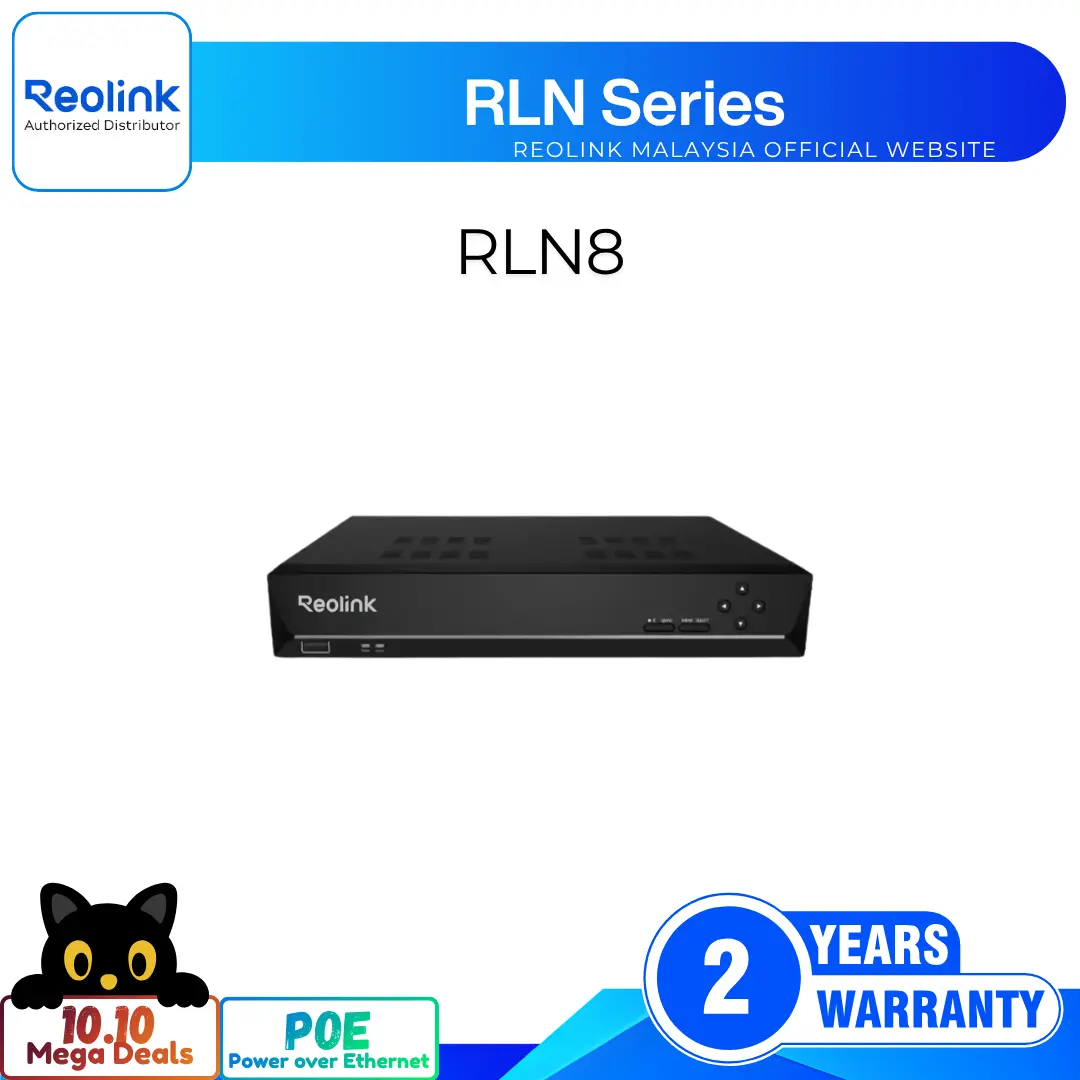
A: The front panel houses the logo, power LED, HDD activity LED, cooling vents, and 1 USB 2.0 port. The rear panel houses the DC power input, on/off rocker switch, RCA audio output port, eSATA expansion port, VGA port, HDMI port, WAN/LAN RJ-45 port, another USB 2.0 port, and 8 PoE RJ-45 camera ports.
What troubleshooting steps should I take if the NVS8 displays an HDD Error or Disk prompt?
A: Power off the NVR, open the chassis cover to verify that both the SATA power and data cables are firmly connected to the motherboard and hard drive. Ensure you are using a compatible 3.5-inch or 2.5-inch SATA HDD, then access System Settings > Storage on the connected monitor or Reolink Client/App to format and initialize the drive.
What should I do if a connected camera channel displays a Video Loss error?
A: Check that the Ethernet cable is securely latched into both the camera's RJ-45 tail cable and the NVR PoE port. Test the camera using a different Ethernet cable or plug it into another PoE port on the NVR. If using a WiFi camera, verify network connectivity and ensure the camera model and firmware are compatible with the NVS8 system.
How do you perform a factory default reset or recover a forgotten password on the NVS8?
A: For password recovery, answer your security questions configured during the initial setup wizard on the monitor, or use the Reolink App/Client password recovery tool. For a factory reset, access System Settings > Maintenance in the NVR monitor interface or Reolink Client/App and select Restore to Factory Default.
Reviews
There are no reviews yet