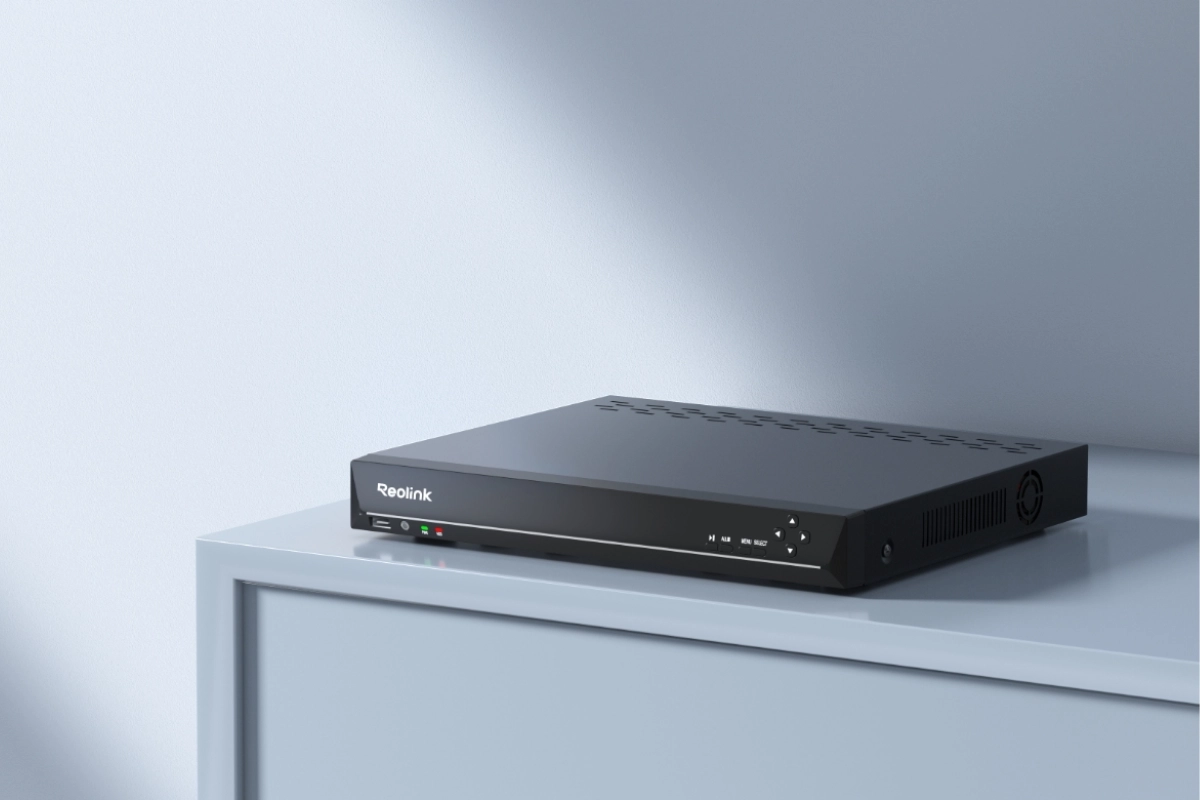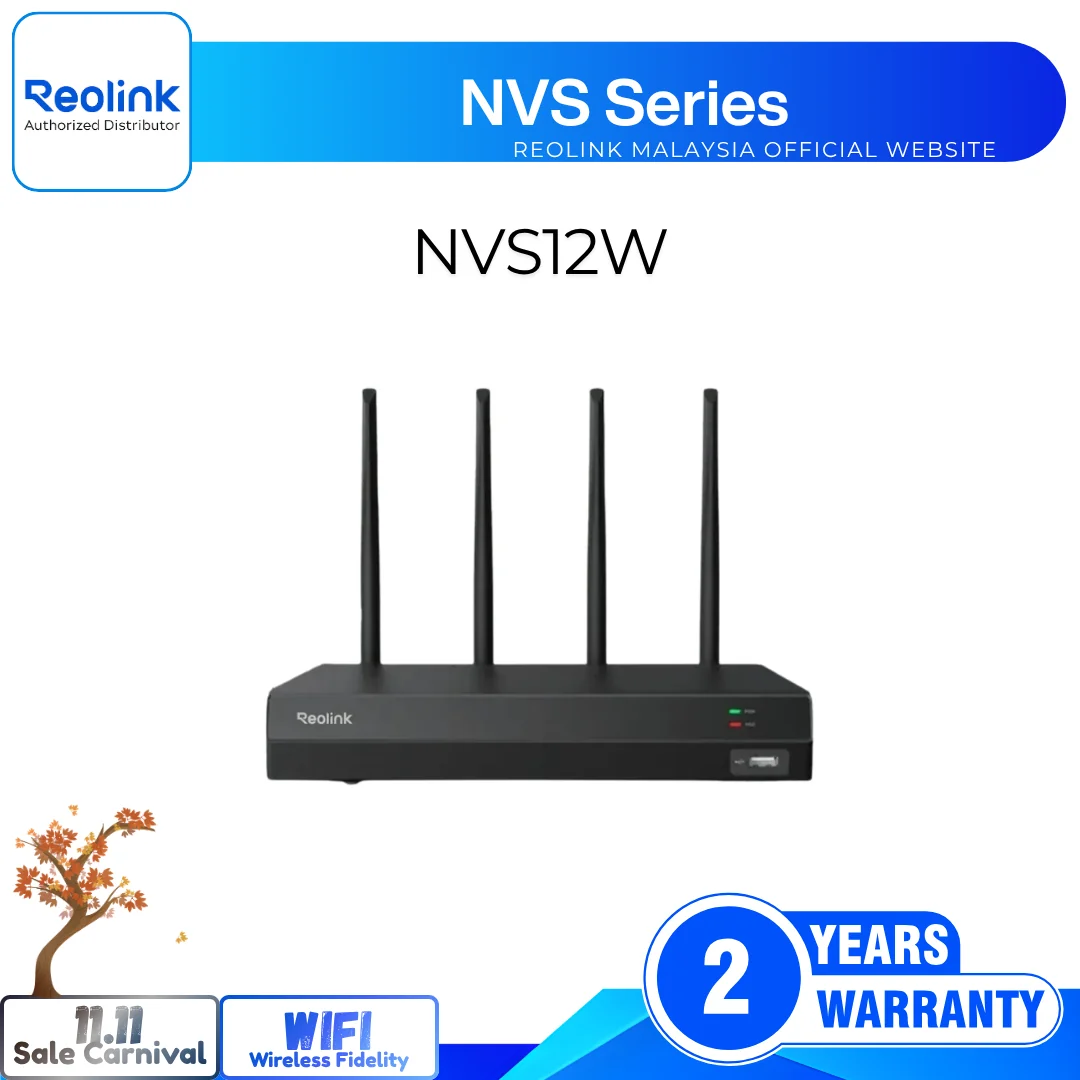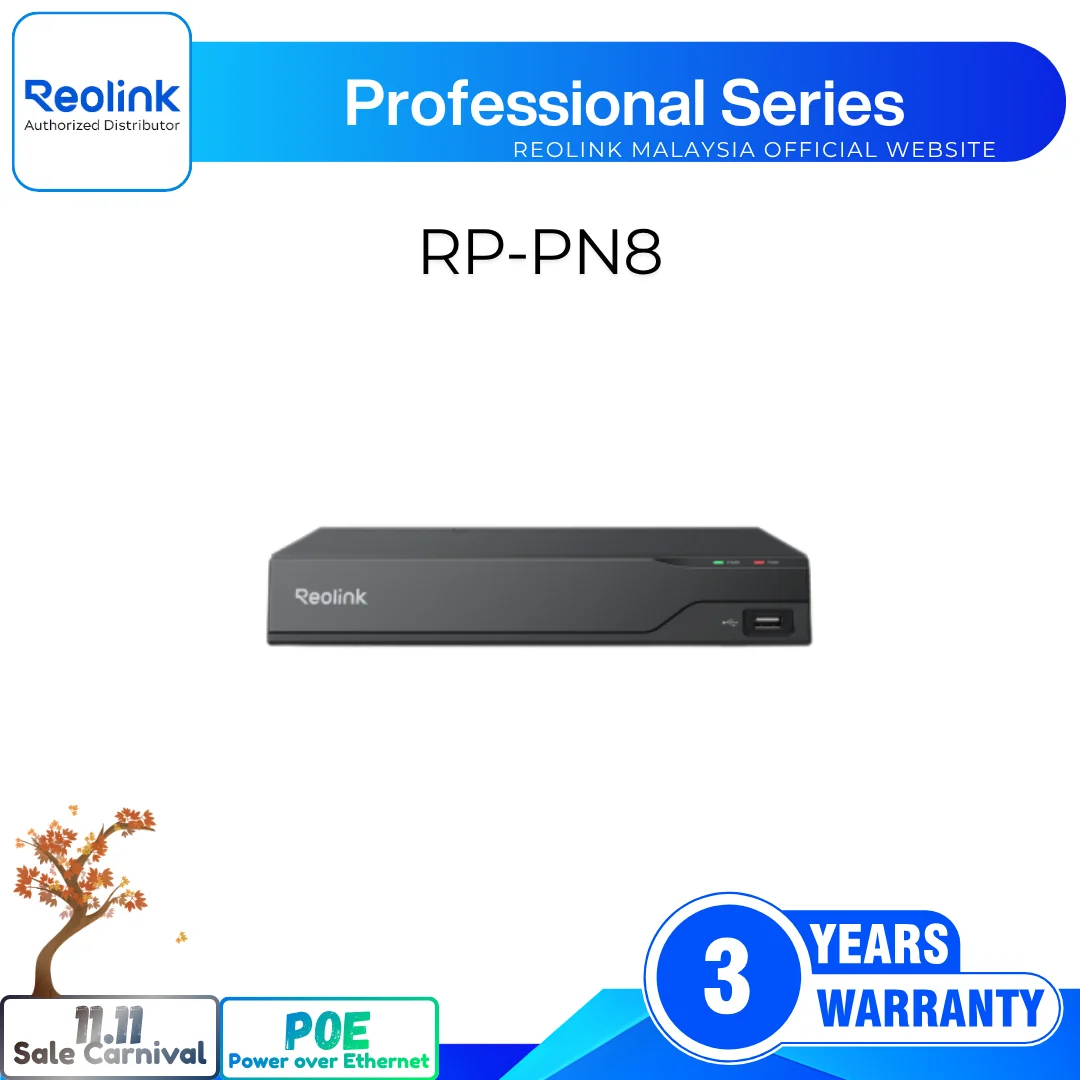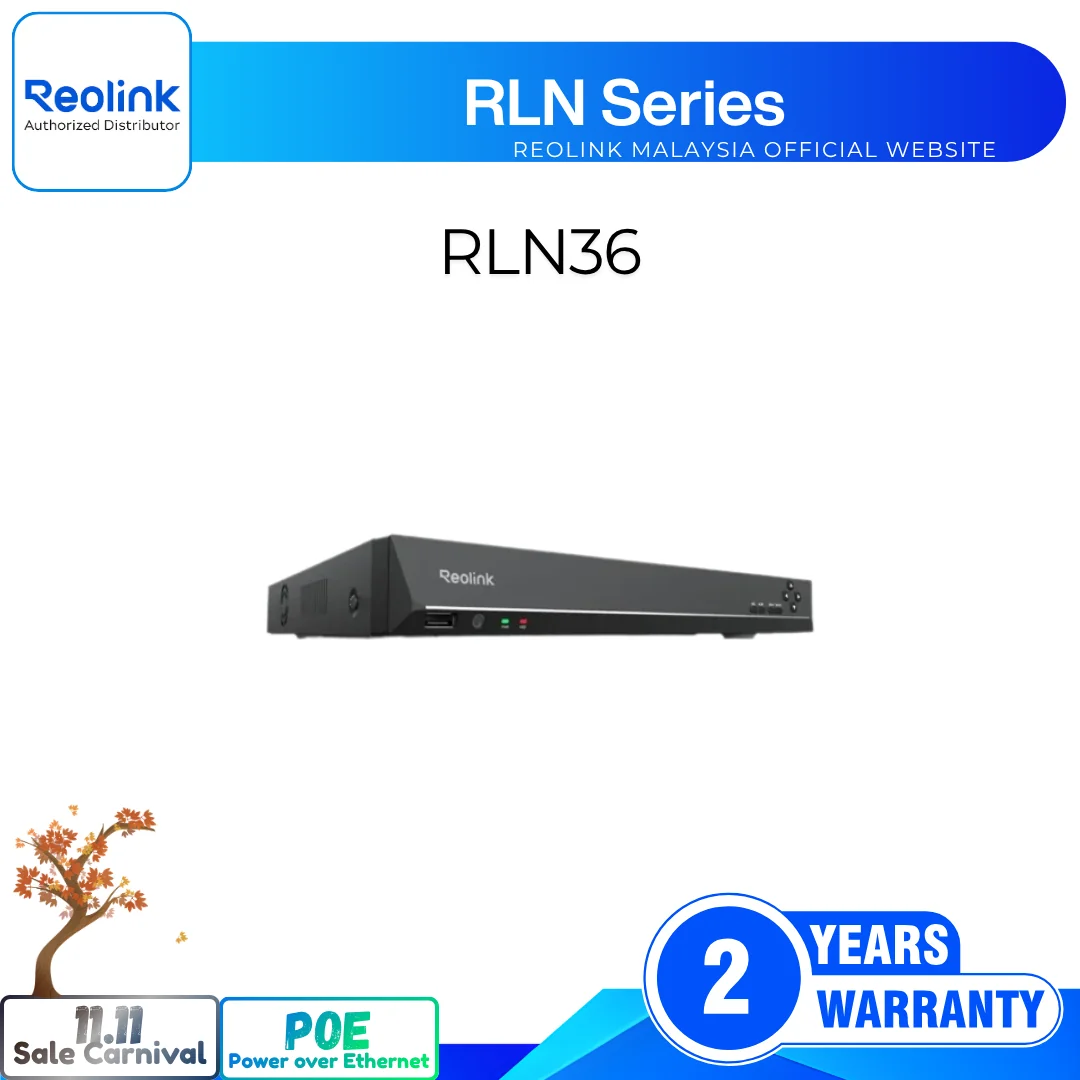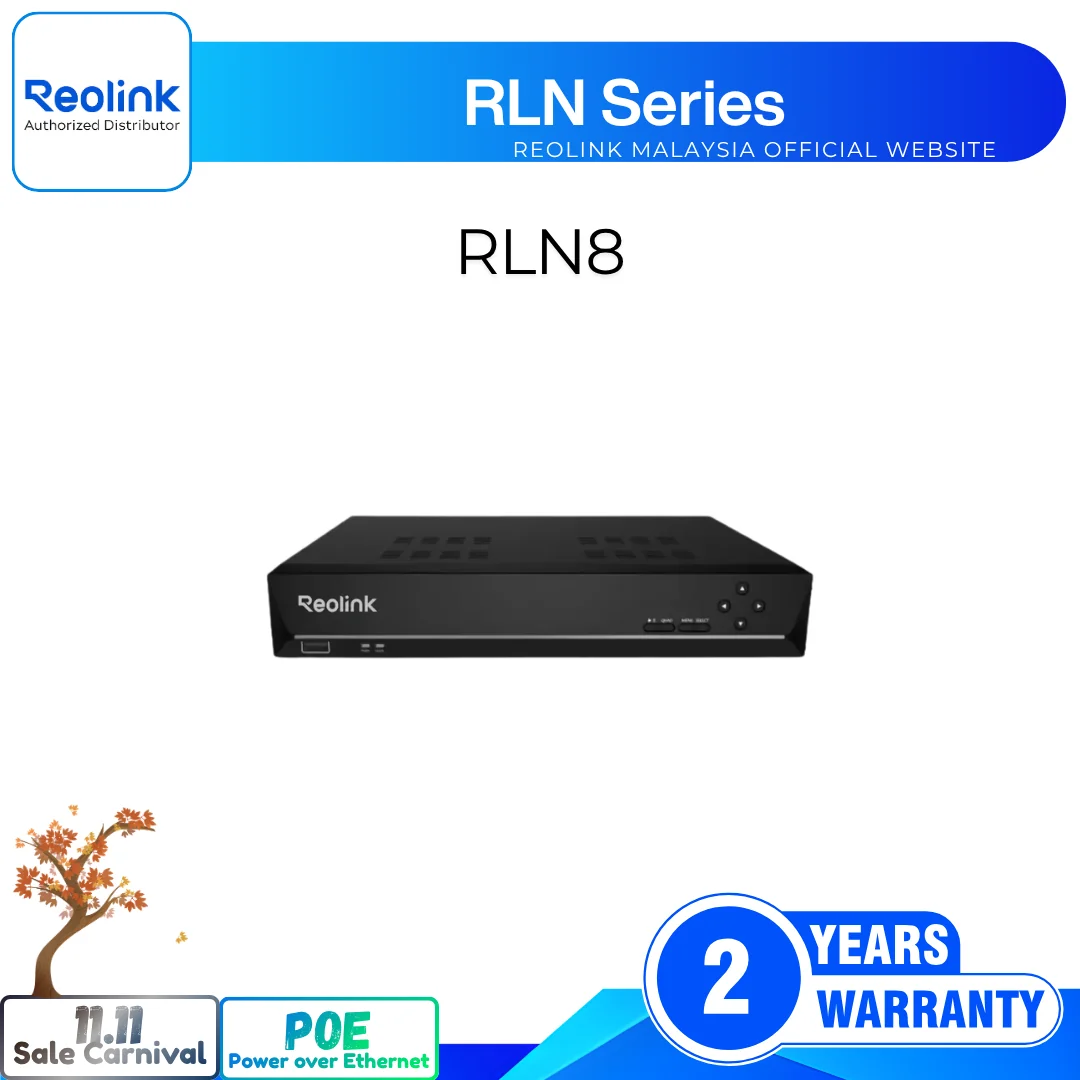
16MP Ultra HD 24-Channel PoE Security Video Recorder
16 Channel PoE for Easy Plug-and-Play Setup
Supports Up to 16MP Ultra-Hgh Resolution
24/7 Continuous Recording for Uninterrupted Security
4K HDMI and VGA Video Outputs
Centralized Remote Management via Reolink App
Simultaneous Multi-Channel Live View and Playback
RM1,399.00–RM2,779.00Price range: RM1,399.00 through RM2,779.00
Reolink NVS16
NVS16 Video
4 Videos
Others Video
Disclaimer: The videos are intended for reference purposes only and are not guaranteed to be 100% accurate. Please refer to the actual product or contact us for verification.
What is the Reolink NVS16 and what primary role does it serve in a security system?
A: The Reolink NVS16 is a high-capacity 16-channel Power over Ethernet (PoE) Network Video Recorder (NVR). It serves as a centralized surveillance control hub to power, manage, and continuously record video feeds from up to 16 direct PoE IP cameras or up to 24 total network IP cameras onto internal SATA hard drives.
How many total IP cameras can be managed by the Reolink NVS16?
A: The Reolink NVS16 supports up to 24 total IP cameras on the local network. This includes up to 16 wired PoE cameras directly plugged into its rear PoE ports, plus up to 8 additional WiFi or LAN-connected IP cameras operating on the same local area network router.
What maximum camera decoding resolutions are supported by the Reolink NVS16?
A: The NVS16 supports high-resolution IP cameras up to 16 Megapixels (16MP UHD). Supported decoding resolutions include 16MP (7680x2160), 12MP (4608x1728 / 4096x3072), 11MP (4512x2512), 8MP 4K (3840x2160), 6MP (2560x2560), 5MP (2560x1920), 4MP (2560x1440), 3MP (2048x1536 / 2304x1296), 1080p, and 720p.
What standard items are included in the package box when purchasing the Reolink NVS16?
A: The standard package includes the Reolink NVS16 NVR unit, an NVR DC power adapter, an HDMI cable, a USB optical mouse, a 1-meter Ethernet cable, SATA internal connection cables and HDD mounting screws, and operational instructions or a quick start guide.
What are the physical dimensions, weight, and warranty coverage of the NVS16?
A:
Dimensions: 330 mm width x 45 mm height x 285 mm depth
Weight: 2.4 kg (5.29 lbs)
Warranty: Includes a 2-year limited warranty backed by official Reolink technical support.
Hard Drive Options, Installation & Recording Modes
What hard drive specifications and maximum storage capacity does the NVS16 support?
A: The NVS16 contains 2 internal SATA drive bays supporting 3.5-inch or 2.5-inch internal SATA I, II, or III surveillance-grade hard drives. Each SATA slot supports a capacity of up to 8TB, giving the unit a maximum total supported system capacity of 16TB (8TB x 2).
How do you install internal SATA hard drives into the NVS16 NVR chassis?
A:
Turn OFF the NVS16 and disconnect the DC power adapter.
Remove the casing screws on the sides and rear of the metal chassis, then slide off the top outer cover.
Connect the provided SATA power and data cables from the motherboard to your SATA hard drive(s).
Align the hard drive mounting holes with the screw slots on the bottom plate of the casing and secure them using the provided HDD mounting screws.
Replace the chassis top cover, tighten the exterior screws, plug in the power adapter, and format the drive via the NVR monitor screen menu.
What video recording modes does the Reolink NVS16 support?
A: The NVS16 supports three primary local recording modes once a SATA hard drive is installed:
24/7 Continuous Recording (Default mode, saves video non-stop to HDD)
Motion-Triggered Event Recording (Records only when motion or AI targets are detected)
Scheduled Recording (Customizable time windows and days per camera channel)
Does the Reolink NVS16 require an active internet connection to record video locally?
A: No. The NVS16 functions as an independent, standalone local security vault. Connected PoE cameras stream and record directly to your internal hard drive 24/7 without requiring active router internet access. An internet connection is only required when you want to view live feeds or receive notifications remotely on smartphones or computers.
Can recorded video footage be backed up or exported from the Reolink NVS16?
A: Yes, users can export and backup recorded event clips or historical video archives directly to a USB flash drive or external hard drive plugged into the front/rear USB ports, or upload files remotely over FTP (File Transfer Protocol).
Power over Ethernet (PoE), Cabling & Network Interface
How is power provided to cameras connected directly to the Reolink NVS16?
A: Power is supplied via Power over Ethernet (PoE). Each IP camera connects directly to one of the 16 rear RJ-45 PoE network ports using a single Ethernet cable, transmitting electric power and digital video data simultaneously.
What PoE standards and maximum power output per port does the NVS16 deliver?
A: The NVS16 complies with active IEEE 802.3af and IEEE 802.3at PoE standards, delivering up to 25 Watts of power per PoE port.
How does the Reolink NVS16 connect to a local network router?
A: The rear panel features one dedicated 10/100 Mbps self-adaptive RJ-45 WAN/LAN port. Connect an Ethernet cable from this LAN port directly to an available LAN port on your internet router.
Which network protocols and encryption standards are supported by the system?
A: Supported network protocols include HTTP, TCP/IP, UDP, DHCP, P2P, UPnP, RTSP, SMTP, SSL/TLS, DNS, DDNS, NTP, and FTP.
What power supply adapter is required to operate the Reolink NVS16?
A: The NVS16 unit is powered by an included DC 48V to 54V power adapter. The standalone power consumption of the NVR unit is under 10 Watts, excluding internal hard drive power draw and connected PoE camera load.
Video Output, Decoding Specifications & Synchronous Playback
What video output ports are available on the rear panel of the NVS16?
A: The rear panel contains 1 HDMI port and 1 VGA port for direct video display connections to external TV monitors or computer display screens.
What display resolutions are supported via the HDMI and VGA output ports?
VGA Display Resolutions: 1920x1080 (1080p), 1280x1024, 1280x720, and 1024x768.
What video compression formats does the Reolink NVS16 support?
A: The NVS16 supports advanced H.265 and H.264 video compression encoding formats to optimize storage space on installed hard drives and reduce local network bandwidth consumption.
How many channels can be played back synchronously on a connected monitor?
A: The Reolink NVS16 supports synchronous playback for up to 4 channels simultaneously in a split-screen grid layout on a connected monitor.
Does the Reolink NVS16 support external audio output for camera audio?
A: Yes, the rear panel includes 1 RCA audio output port, allowing an external powered speaker or audio amplifier to be connected for monitoring live or recorded camera microphone feeds.
Remote Access, Mobile App & Client Management
Which mobile apps and computer operating systems can manage the NVS16?
A:
Computers: Official Reolink Client software for Windows PC and Mac OS.
Smartphones & Tablets: Official Reolink App for iOS and Android.
Can I access the Reolink NVS16 through a desktop web browser?
A: Yes, full system management, live streaming, settings configuration, and video playback are supported through popular web browsers including Microsoft Edge, Google Chrome, Mozilla Firefox, and Apple Safari.
How many user accounts and simultaneous live streams are supported?
A:
User Accounts: Up to 20 registered user accounts (1 primary Admin account and 19 User accounts).
Simultaneous Live Streams: Up to 12 simultaneous video streams (2 Main Streams and 10 Sub Streams).
How do you add the Reolink NVS16 NVR to the Reolink App on a smartphone?
A: Connect the NVS16 LAN port to your home router and power on the NVR unit. Ensure your smartphone is connected to the same router network Wi-Fi. Open the Reolink App, tap the "+" icon in the top right corner, scan the QR code sticker on the bottom/side of the NVS16 or manually type the 16-character UID, and enter your admin password to complete pairing.
Does the NVS16 system support instant email alerts and push notifications?
A: Yes. When connected cameras detect motion or smart AI targets (People, vehicles, animals), the NVS16 can trigger instant push notifications to smartphones and send email alerts with attached video snapshot thumbnails.
Setup Wizard, Hardware Layout & Troubleshooting
How do you perform initial setup for the Reolink NVS16 using a monitor?
A:
Connect the USB mouse to a front or rear USB port.
Connect an HDMI or VGA cable from the NVR to your monitor or TV.
Connect the NVS16 LAN port to your router and plug in the DC power adapter.
Flip the rear power switch to ON and follow the on-screen setup wizard to configure system language, screen resolution, time zone, format installed hard drives, and set a secure admin password.
Where are the physical hardware ports, status LEDs, and controls located on the NVS16 chassis?
A:
Front Panel: Logo, Power LED, HDD Activity LED, Heat Dissipation Vents, and 1 USB 2.0 Port.
Rear Panel: Power Rocker Switch, DC Power Input, RCA Audio Output Port, 1 USB 2.0 Port, VGA Port, HDMI Port, WAN/LAN RJ-45 Port, and 16 PoE RJ-45 Camera Ports.
What should I do if a connected camera channel displays a Video Loss error?
A:
Verify that the Ethernet cable is securely latched into both the camera's RJ-45 tail cable and the NVR PoE port.
Test the camera using a different Ethernet cable or plug it into another PoE port on the NVR.
If using a WiFi camera, verify network connectivity and ensure the camera model and firmware are compatible with the NVS16 system.
What troubleshooting steps should I take if the NVS16 displays an HDD error prompt or fails to detect a drive?
A: Power off the NVR and open the metal chassis cover to verify that both the SATA power cable and SATA data cable are firmly connected to both the motherboard and hard drive. Ensure your drive is a compatible 3.5-inch or 2.5-inch SATA HDD (Up to 8TB capacity per slot), then access System Settings > Storage on the connected monitor screen or Reolink Client/App to format and initialize the drive.
How do you perform a factory default reset or recover a forgotten password on the NVS16?
A:
Password Recovery: Answer your security questions configured during the initial setup wizard on the monitor, or use the Reolink App/Client password recovery tool.
Factory Reset: Access System Settings > Maintenance in the NVR monitor interface or Reolink Client/App and select Restore to Factory Default.
Reviews
There are no reviews yet