Smart Wi-Fi 6 Security Center with 24-Camera Centralized Management
Centralized Management for Up to 24 Cameras
Expandable Local Storage Up to 16TB Capacity
Encrypted Local Storage with No Monthly Fees
Supports Up to 16MP Ultra-High Resolution
Dual-Band WiFi 6 for Fast Connection
Built-In Loud Siren for Synchronized Alarms
RM2,199.00Original price was: RM2,199.00.RM1,699.00Current price is: RM1,699.00.
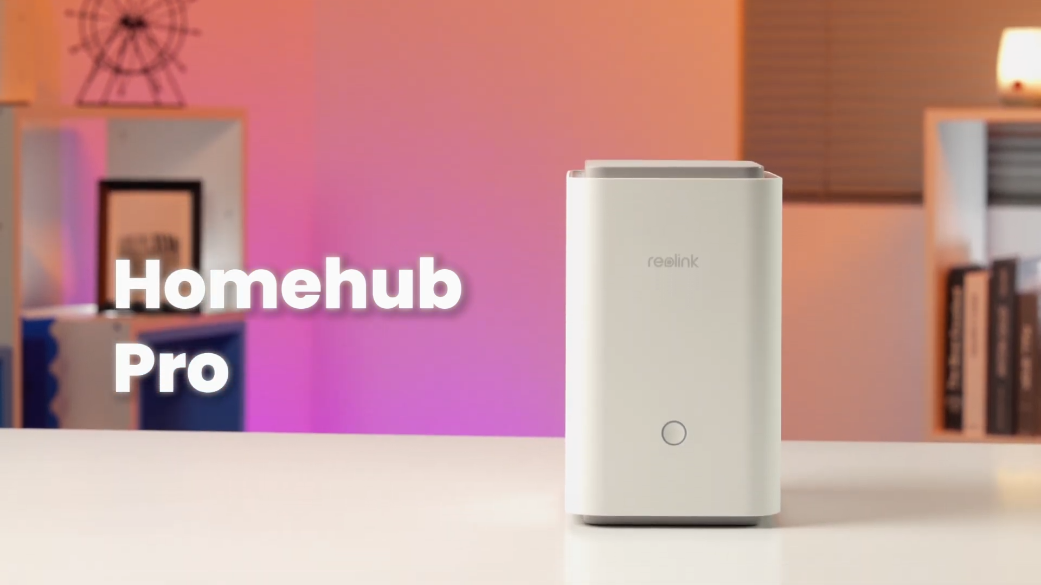
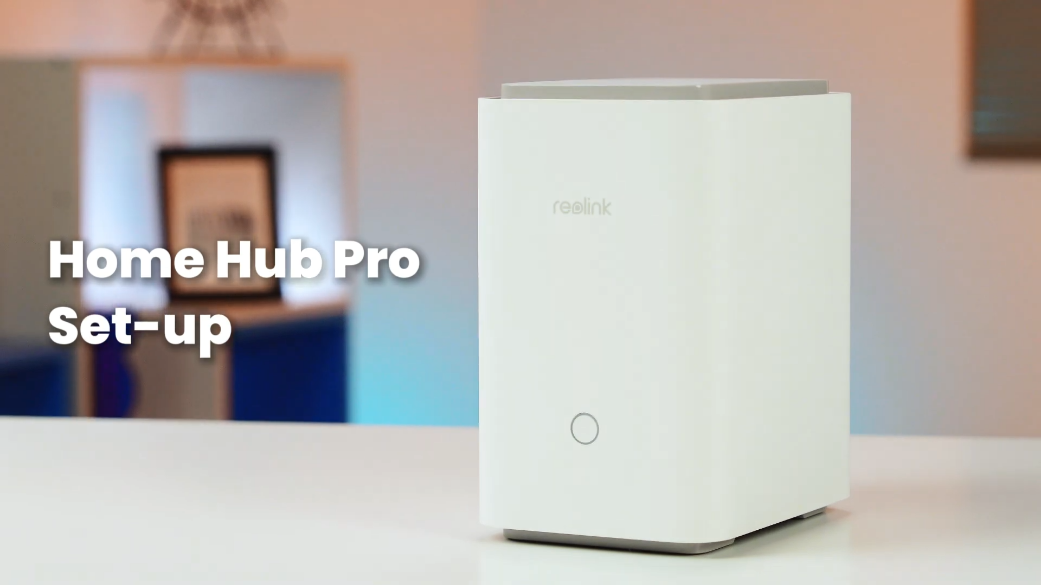
Reolink Home Hub Pro
Home Hub Pro Video
7 Videos
Others Video
Disclaimer: The videos are intended for reference purposes only and are not guaranteed to be 100% accurate. Please refer to the actual product or contact us for verification.
What is the Reolink Home Hub Pro and what function does it serve in a security system?
A: The Reolink Home Hub Pro is a WiFi 6 all-in-one local security management center and encrypted data vault. It serves as a centralized hub for managing up to 24 Reolink cameras, offering off-grid local event and 24/7 continuous recording, up to 16MP live streaming and playback, high-decibel siren alarms, and localized device security without requiring monthly subscription fees.
How many cameras can be added to a single Reolink Home Hub Pro?
A: A single Reolink Home Hub Pro supports up to 24 Reolink IP cameras simultaneously, with support for up to 12 wired (PoE or plug-in LAN) cameras.
What security and privacy protection features does the Reolink Home Hub Pro offer?
A: The Hub Pro isolates connected cameras from individual direct network access. All device access, management, and account sharing options are routed exclusively through the Home Hub Pro. Furthermore, stored video files are protected using an AES-128 encryption algorithm to safeguard video data against theft or unauthorized extraction.
Does the Reolink Home Hub Pro feature direct monitor video outputs or external hardware ports?
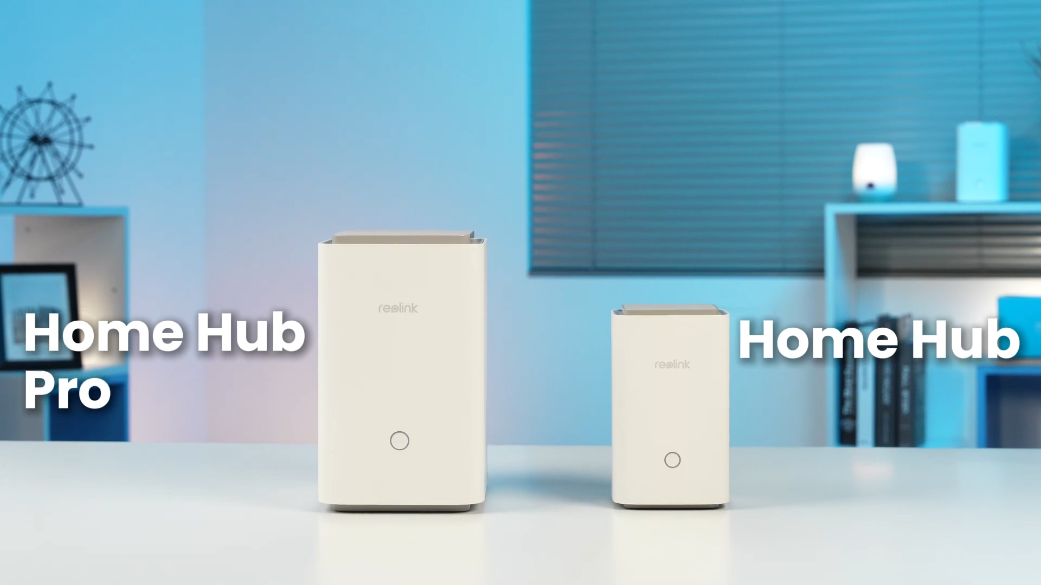
A: Yes. Unlike the standard Reolink Home Hub, the Home Hub Pro includes a built-in HDMI port for direct video playback on external monitors or TVs, as well as a USB port for connecting peripheral hardware such as a mouse or external backup media.
What smart home platforms and warranty coverage are supported by the Home Hub Pro?
A: The Reolink Home Hub Pro is compatible with Google Assistant for smart home voice integration. It comes with a 2-year limited warranty supported by official Reolink technical assistance.
Storage Options, Hard Drive Expansion & Encryption
What storage options come included with the Reolink Home Hub Pro out of the box?
A: The Home Hub Pro no include a SATA Hard Disk Drive (HDD) inside its internal drive bay.
What is the maximum storage capacity supported by the Reolink Home Hub Pro?
A: The internal 3.5-inch SATA hard drive bay supports HDDs with capacities up to 16TB. Additionally, the device features a MicroSD card slot that supports cards up to 512GB.
Can the Reolink Home Hub Pro record to both the hard drive and a MicroSD card simultaneously?
A: No. If both a SATA hard drive and a MicroSD card are inserted, the MicroSD card cannot save video recordings because the primary SATA HDD takes priority for all recording tasks.
How is recorded video data protected against physical theft or unauthorized access?
A: All event clips and 24/7 continuous footage saved to the internal hard drive or MicroSD card are encrypted using military-grade AES-128 encryption algorithm. Video files cannot be decrypted or played by removing the storage drive and plugging it into a third-party computer without authenticating through the Hub.
How do you replace or install a hard drive in the Reolink Home Hub Pro?
A:
Ensure the Hub Pro is completely powered off and unplugged.
Press the release tab on the left side of the HDD slot cover and pull out the hard drive tray bracket.
Align your SATA hard drive into the bracket and secure it using the provided screws in Bag D.
Slide the bracket back into the slot until the release tab clicks shut, then replace the outer cover.
Network Connectivity, WiFi 6, Ports & Protocols
What WiFi standards and operating wireless frequencies are supported?
A: The Home Hub Pro features dual-band WiFi 6 technology operating on both 2.4 GHz and 5 GHz bands under IEEE 802.11 a/b/g/n/ac/ax wireless standards with WPA, WPA2, and WPA3 security encryption protocols. It also supports Sub 1 GHz operating frequencies (868 MHz / 915 MHz) for specialized long-range wireless device communication.
How many Ethernet network ports are available on the rear panel of the Home Hub Pro?
A: The device features two self-adaptive 10/100 Mbps RJ-45 Ethernet ports:
1 x WAN Port: Connects the Hub Pro directly to your home router.
1 x LAN Port: Connects directly to local IP cameras or a PoE switch.
What network protocols are supported by the system software?
A: Supported network protocols include TCP/IP, UDP, DHCP, P2P, UPnP, RTSP, RTMP, SMTP, SSL/TLS, DNS, DDNS, NTP, and FTP.
Which computer operating systems and mobile platforms can access the Hub Pro?
A:
Computers: Windows PC and Mac OS via the official Reolink Client software.
Mobile Devices: iOS and Android via the official Reolink App.
How many simultaneous user accounts and video streams are supported?
A:
User Accounts: Up to 11 registered user accounts (1 primary Admin account and 10 Shared user accounts).
Live Streams: Supports multi-user remote viewing via the Reolink App and Client software.
Device Compatibility, Camera Pairing & Capacity
Which Reolink IP camera models can be managed by the Reolink Home Hub Pro?
A: The Home Hub Pro supports all Reolink battery-powered WiFi cameras, plug-in WiFi cameras, and PoE (Power over Ethernet) cameras. Note that battery-powered cameras require a firmware update that explicitly supports Hub pairing before connecting.
How many wired cameras can be connected to the Reolink Home Hub Pro?
A: Out of the total 24 supported camera channels, up to 12 cameras can be connected via wired network connections (LAN or PoE).
How do you add an already configured camera to the Reolink Home Hub Pro?
A: Open the Reolink App, select your Home Hub Pro, tap the "+" icon in the upper right corner, and select either "add from device list" or "add from LAN" to import the camera into the Hub's management system.
How do you pair a brand-new, unconfigured camera to the Home Hub Pro?
A: Power on the new camera, open the Reolink App, tap your Home Hub Pro, tap "+" in the top right corner, select "scan QR code/UID", and scan the QR code sticker located on the camera housing.
Can PoE cameras be recorded to the Home Hub Pro?
A: Yes, Reolink PoE cameras connected to the same local area network (Via a PoE switch, PoE injector, or the Hub's LAN port) can stream and record directly to the Home Hub Pro's internal HDD.
Hardware Specifications, Speaker Siren & Physical Features
What are the physical dimensions, weight, and power supply requirements of the Home Hub Pro?
A:
Dimensions: 185 mm x 133 mm x 222 mm
Weight: 1096 grams (1.096 kg, including HDD)
Power Adapter: Included DC 12V, 2A power adapter
What are the volume specifications and function of the built-in speaker?
A: The Hub Pro features an integrated high-output speaker capable of emitting custom alert sounds and deterrence sirens reaching up to 120dB in volume when connected cameras detect motion or security events.
How do you quickly silence the alarm when the Hub Pro is sounding a siren?
A: Short-press the combination Indicator Light / Function Button on the front panel of the Hub Pro to immediately turn off the active alarm siren.
What do the front Indicator Light colors signify?
A:
Solid Red Light: Device is powered on and booting up.
Solid Blue Light: Device has initialized successfully and is connected to the network.
What are the operational temperature and humidity environmental limits?
A:
Operating Temperature: -10°C to +45°C (14°F to 113°F)
Operating Humidity: 10% to 90% non-condensing
Usage Environment: The Hub Pro is strictly an indoor central management unit.
Mobile App Setup, System Management & Troubleshooting
How do you perform initial setup for the Reolink Home Hub Pro using a smartphone?
A:
Connect the Hub Pro's WAN port to your router using the provided Ethernet cable.
Plug the DC 12V 2A power adapter into a wall outlet and connect it to the Hub Pro.
Ensure your smartphone is connected to the same router WiFi network.
Download and open the Reolink App, tap "+" in the top right corner, scan the QR code printed on the back of the Hub Pro, and follow the on-screen wizard to create an admin password.
How do you verify that the Reolink Home Hub Pro initial network setup succeeded?
A: When initialization is complete and the network connection is established, the front LED indicator light on the Hub Pro turns solid blue.
What troubleshooting steps should you take if the indicator LED stays red or fails to light up?
A:
Verify that the DC 12V 2A power adapter is firmly connected to both the device and a working electrical outlet.
Check that the Ethernet cable is securely latched between the Hub's WAN port and a working LAN port on your router.
Ensure your home router has active internet access and DHCP enabled.
Perform a hardware reset by inserting the provided reset needle into the reset hole on the rear panel while the unit is powered on.
How do you access live streams and playback from a computer?
A: Download the official Reolink Client software for Windows PC or Mac OS from reolink.com > Support > App & Client. Launch the application while connected to the local network or log in using the Hub Pro's 16-character UID number and admin password.
What should you do before returning or selling a Reolink Home Hub Pro?
A: Perform a factory default reset via the reset button or system settings, and remove any personal storage media or inserted MicroSD cards to ensure all user configurations and encrypted data are cleared.





Reviews
There are no reviews yet